
Ever since I added Music Assistant playlist buttons to my smart home dashboards, I listen to way more music! It’s so easy to use and it hardly takes up any room on the dashboard.
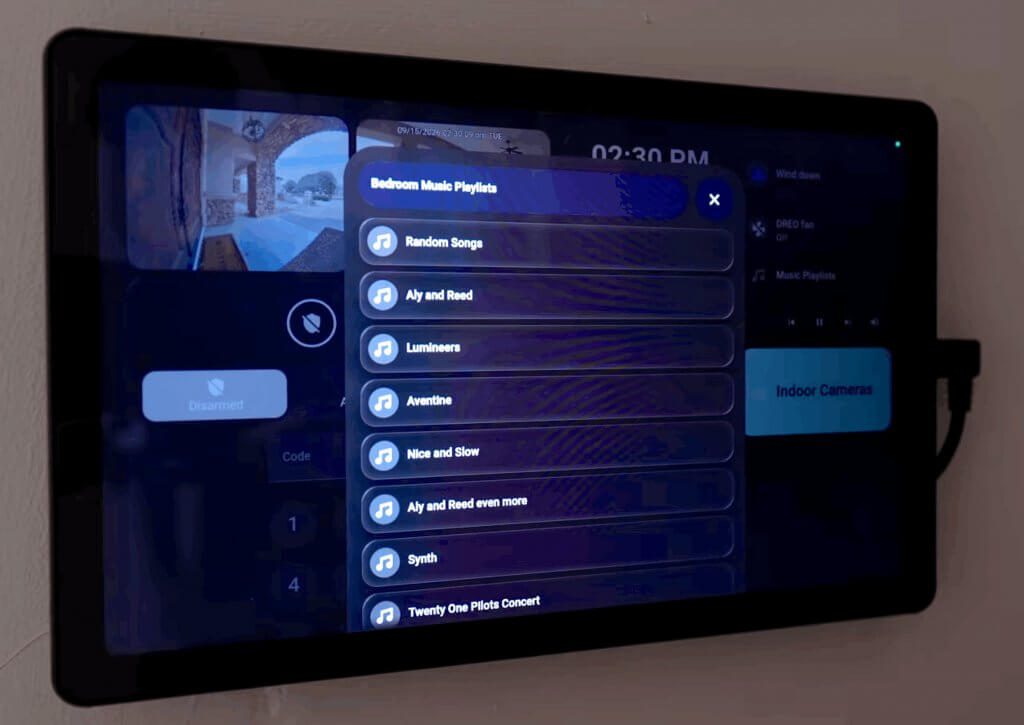
How it works is simple: I press one button and it pops up a list of my Spotify playlists I like to listen to in that room. If I select a playlist, it tells a script the Spotify playlist name, the volume, and if it should shuffle or not. I talk about it more in this video.
What’s nice about this set up is that once it’s created for one room, it’s super easy to duplicate for other rooms in my house. Okay let’s get into how it works!
To show all the playlists in a pop up, I’m using Bubble Card. It’s one of my all time favorite add-ons to Home Assistant!
Here is the code for the button to bring up the Bubble Card. I just create a tile card and use the “time” entity as a dummy entity.
type: tile
entity: sensor.time
name: Music Playlists
icon: mdi:music
color: green
hide_state: true
vertical: false
tap_action:
  action: navigate
  navigation_path: "#massbedroomspeaker"
icon_tap_action:
  action: navigate
  navigation_path: "#massbedroomspeaker"
features_position: bottom
Then I created a Bubble Card dashboard card. This will hold all the buttons for Spotify playlists. As you can see, the header is the “massbedroomspeaker,” which has to be the same as that button above to make the Bubble Card appear.

Now I will show some examples of buttons that starts playing a Spotify playlist in Music Assistant.
The button only calls a script that I made in Home Assistant, and has one required variable I have to pass in: the Spotify playlist name. I can also set the volume and if it should shuffle by setting those variables.
type: tile
grid_options:
  columns: 12
  rows: auto
entity: sensor.time
name: Metallica
icon: mdi:music
hide_state: true
vertical: false
tap_action:
  action: perform-action
  perform_action: script.mass_music_bedroom_speaker_dynamic
  target: {}
  data:
    playlist_name: Metallica
    volume: 60
icon_tap_action:
  action: perform-action
  perform_action: script.mass_music_bedroom_speaker_dynamic
  target: {}
  data:
    playlist_name: Metallica
    volume: 60
features_position: bottom

You don’t have to change the volume or shuffle mode if you don’t want to. But here’s the script it calls.
sequence:
  - data:
      media_type: playlist
      media_id: " {{playlist_name}} "
      enqueue: replace
    target:
      entity_id:
        - media_player.home_assistant_voice_bedroom_media_player
    action: music_assistant.play_media
  - action: media_player.repeat_set
    target:
      entity_id:
        - media_player.home_assistant_voice_bedroom_media_player
    data:
      repeat: all
  - choose:
      - conditions:
          - condition: template
            value_template: "{{ volume|float(0) > 0 }}"
        sequence:
          - action: media_player.volume_set
            metadata: {}
            target:
              entity_id: media_player.home_assistant_voice_bedroom_media_player
            data:
              volume_level: 0.{{volume}}
    default:
      - action: media_player.volume_set
        metadata: {}
        target:
          entity_id: media_player.home_assistant_voice_bedroom_media_player
        data:
          volume_level: 0.2
  - choose:
      - conditions:
          - condition: template
            value_template: " {{shuffle_mode}} "
        sequence:
          - target:
              entity_id: media_player.home_assistant_voice_bedroom_media_player
            data:
              shuffle: true
            action: media_player.shuffle_set
          - data: {}
            target:
              entity_id: media_player.home_assistant_voice_bedroom_media_player
            action: media_player.media_next_track
    default:
      - target:
          entity_id: media_player.home_assistant_voice_bedroom_media_player
        data:
          shuffle: false
        action: media_player.shuffle_set
  - data:
      media_type: playlist
      media_id: " {{playlist_name}} "
      enqueue: replace
    target:
      entity_id:
        - media_player.home_assistant_voice_bedroom_media_player
    action: music_assistant.play_media
alias: Mass Music Bedroom Speaker Dynamic
mode: single
description: ""
I’ll break down the script in smaller sections to explain how it works.

The first action clears the Music Assistant queue and plays the playlist name. I’m using the variable “playlist_name” passed in from the button press.

Then I just set the repeat mode to repeat all. That’s because I get annoyed when a playlist ends and the music stops playing. I know Music Assistant just added an endless loop, but I prefer this.

Then I check to see if the variable “volume” is set. If it isn’t, then it sets a default volume for the player/speaker for that room. If it is set, then I choose that option and set the player/speaker to that number.

Lastly, I check to see if the variable “shuffle_mode” is set to true. If it is, then I set it to shuffle mode “on” or if it’s not set, then I set the shuffle mode to “off” as the default action.
For some reason it doesn’t shuffle unless I set shuffle mode to on and then preform the action of Next track. That seems to make the shuffle work. Maybe it’s a Spotify thing, who knows.
So if you want to duplicate this script for other rooms, all you need to do is swap out the media player entity with the other room’s media player for the speaker. I just use the find and replace in the yaml to swap it out and it takes me no time at all.
Hopefully this was helpful and you can play more music in your home!
Make sure to subscribe on YouTube so you don’t miss future content like this.